
Home (Calendar)
How to view and manage your running records on the Home screen.
1. Screen layout
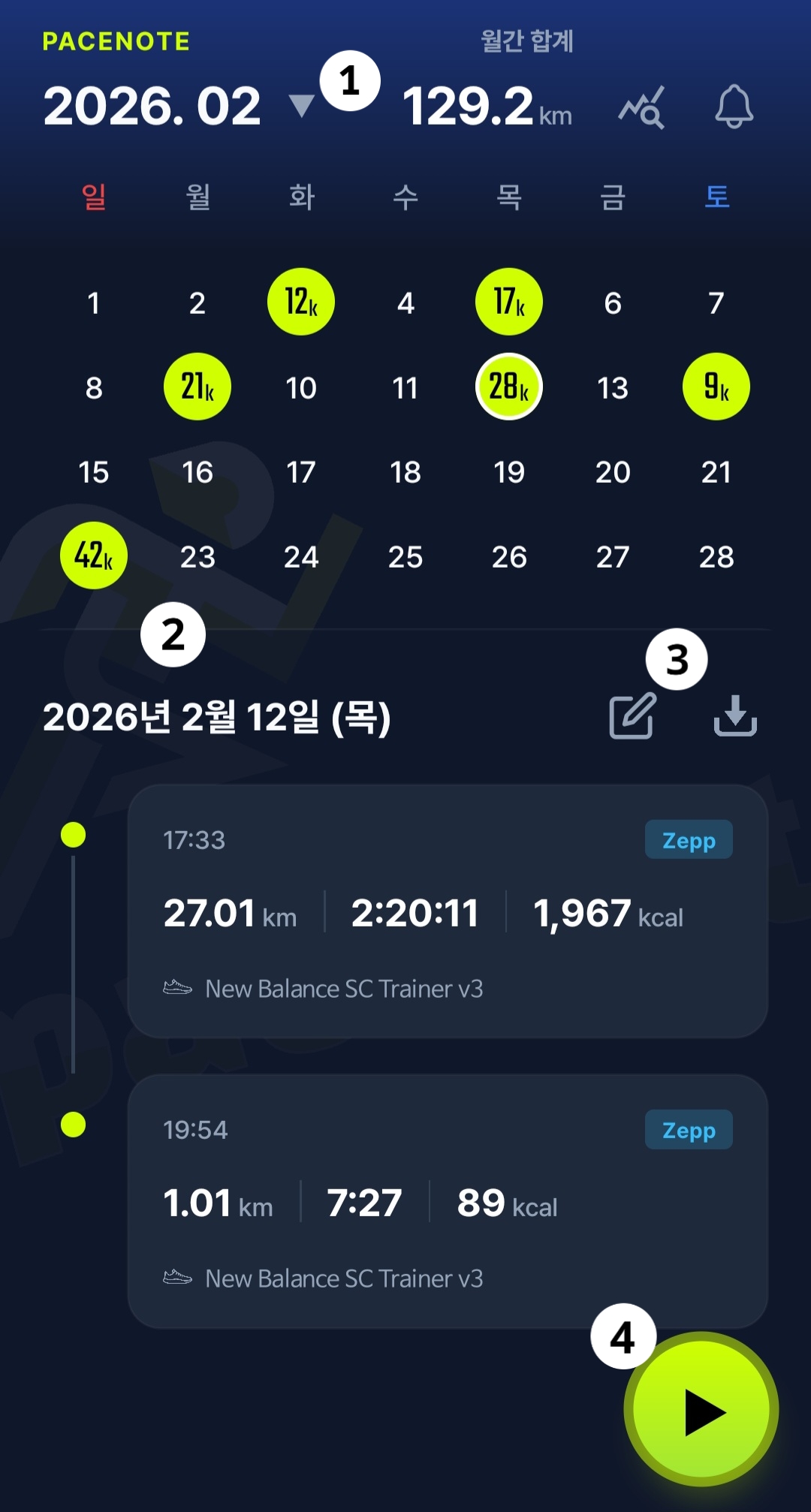
① The top bar shows year/month, total distance this month, statistics, and notifications.
② The calendar is in the center. Tap a date to see runs for that day below.
③ Below the selected date you will find Add manual record (pencil icon) and Import records (download icon).
④ Tap the Play (▶) button in the bottom-right corner to start a run.
2. Change month
Swipe the calendar left or right to move to the previous or next month.
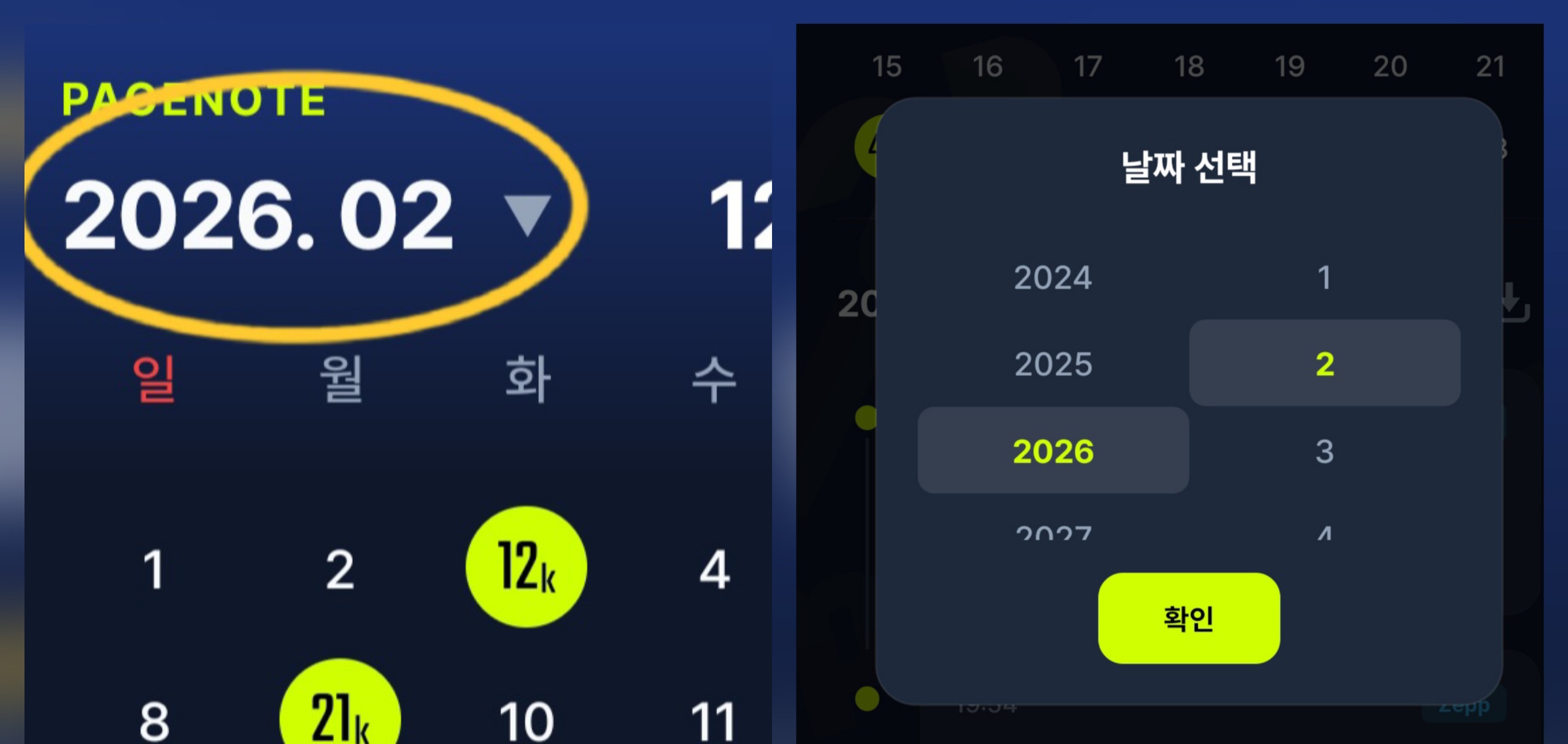
To jump to a specific month in the past, tap the year/month label in the top-left. A year and month picker will open.
Select the year and month you want, then tap Confirm to go to that month.
3. Add records
In Pacenote you can add runs through manual entry or import from health apps.
1) Manual entry
Tap the pencil icon to add a run manually.
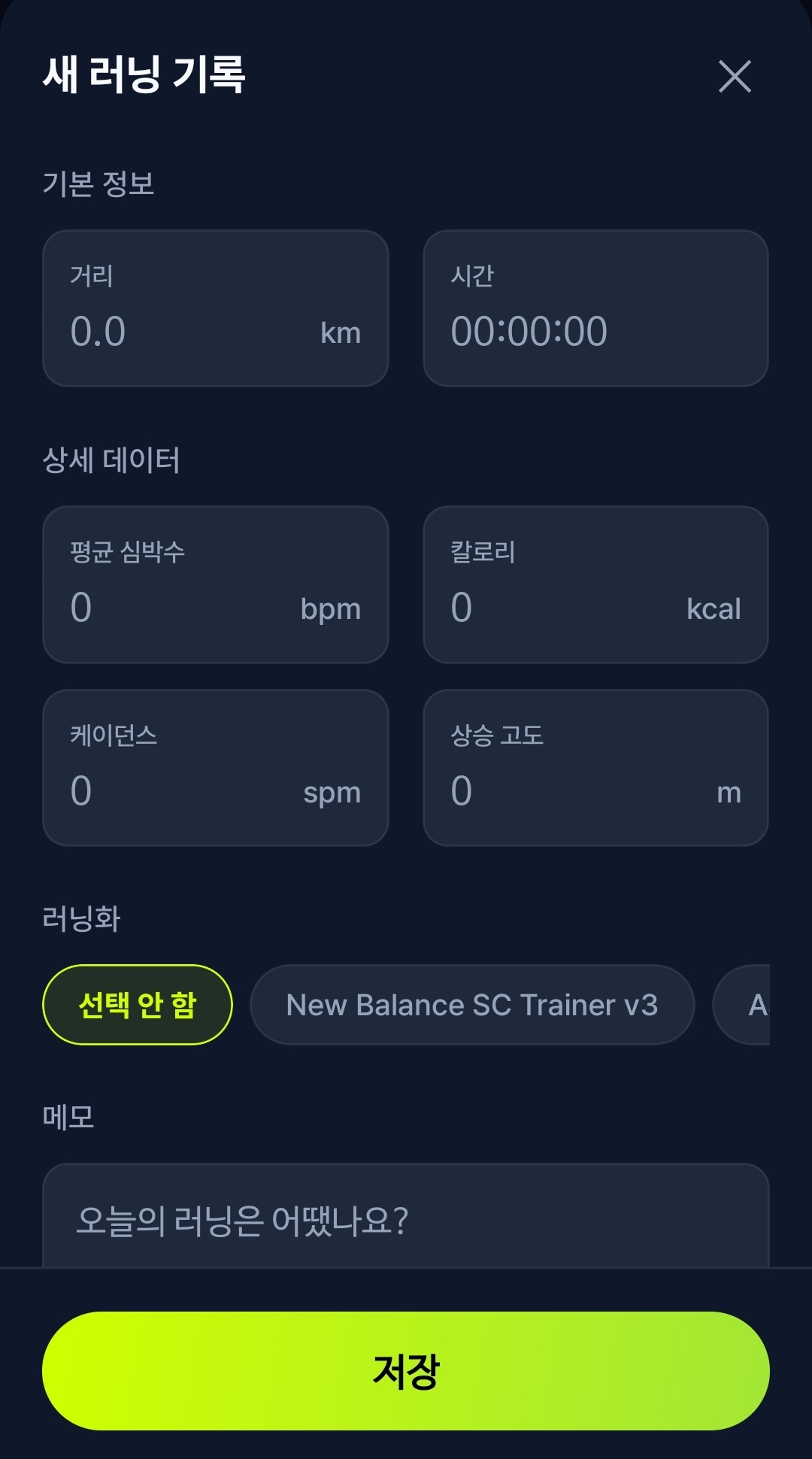
Enter distance (km), time, pace, and other required fields, then tap Save to add it to the calendar.
2) Import records
Tap the download icon to import runs saved on your wearable via Health Connect (Android) or Apple Health (iOS).
Make sure Health Connect / Apple Health is linked to your watch app (e.g. Garmin Connect™).
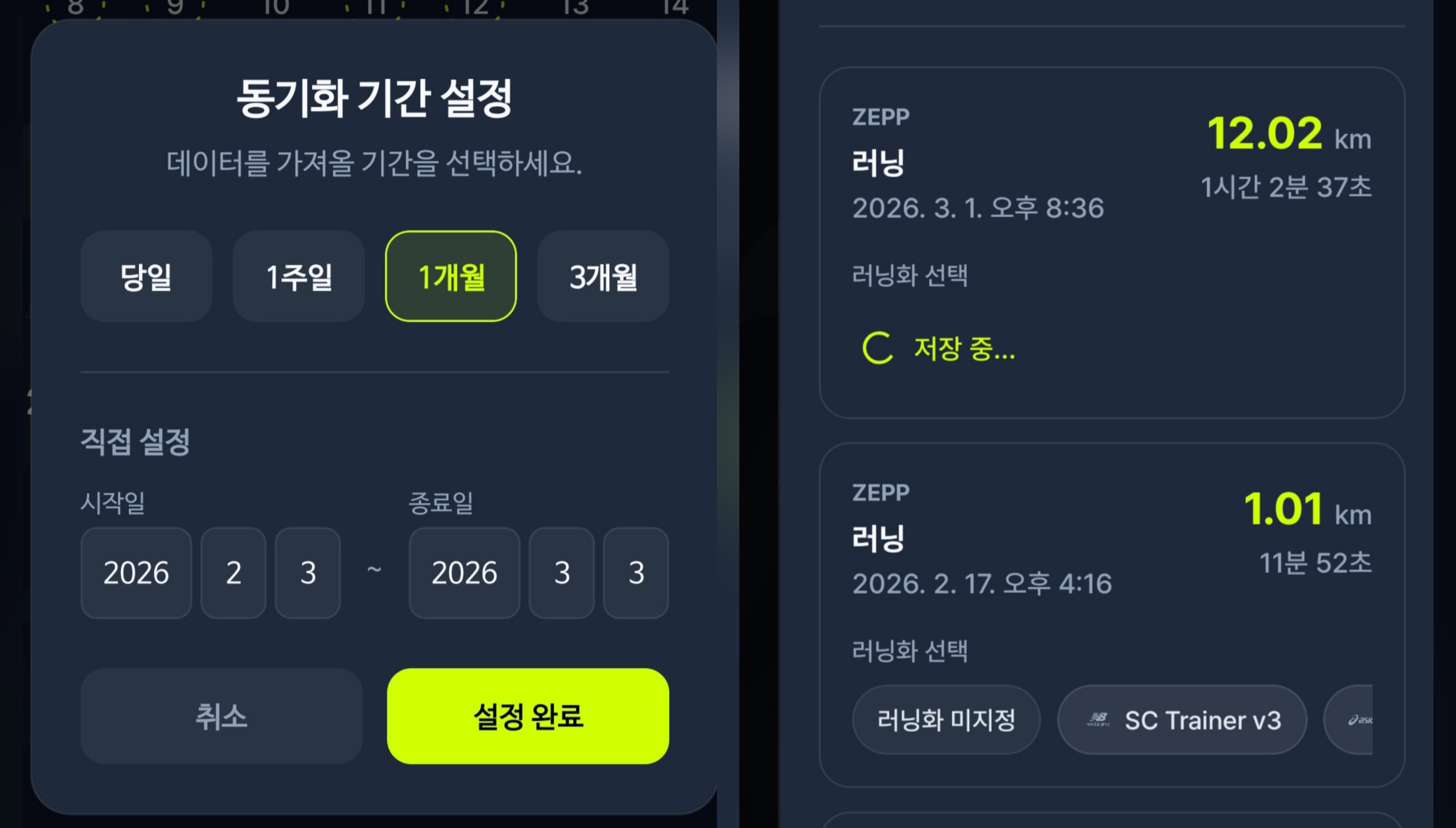
Choose a date range and tap Done to fetch workouts for that period.
When sync completes, importable workouts appear in the list. Select the shoes you used and save to the calendar.
Only running and indoor running are listed. Workouts already saved in Pacenote are not imported again.
4. Start a run (GPS tracking)
Tap the Play (▶) button in the bottom-right to choose Free, Training, or Race mode.
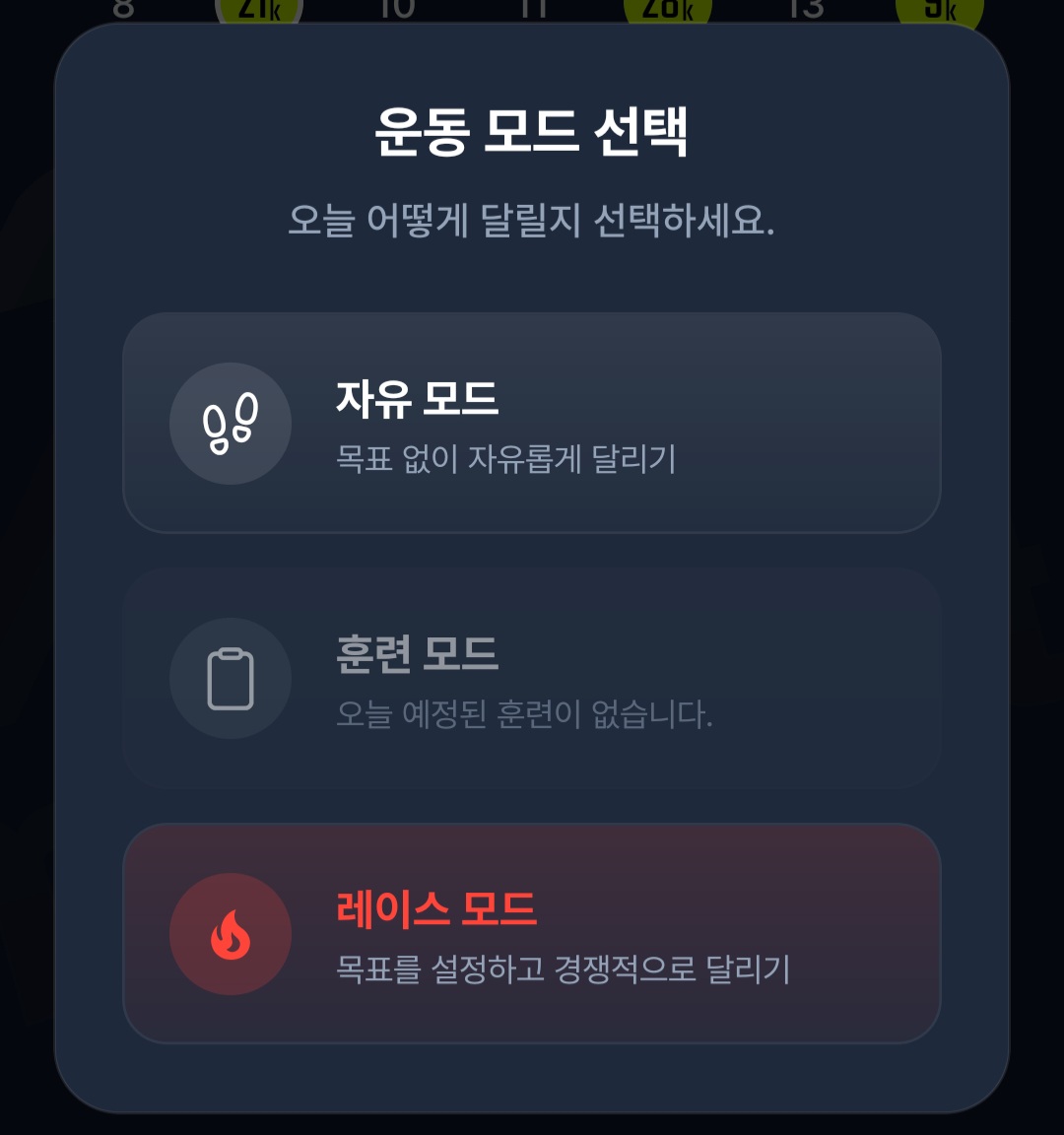
1) Free mode
Run without a fixed goal. You receive lap-by-lap voice guidance only.
2) Training mode
Available when you have a scheduled workout today. Voice guidance covers session instructions, remaining time, distance, and more.
3) Race mode
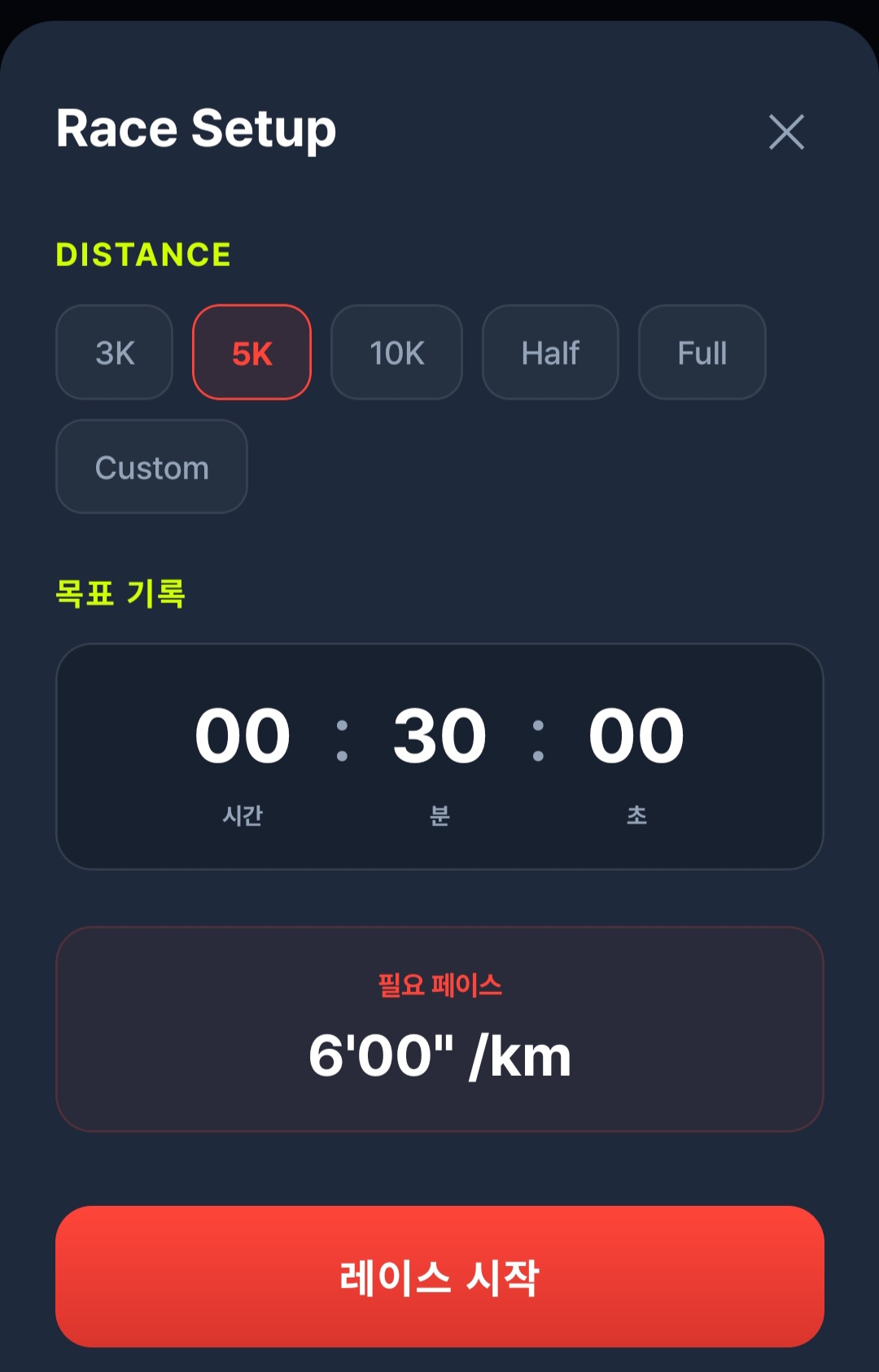
Set a target (distance and/or time) when you want a hard effort. Guidance includes lap updates and pace vs. target.
After location permissions are granted, GPS records distance and pace in real time. When you finish, the run is saved on that date automatically.